 NSFW
NSFWpalautogerist
Elite
This will only apply when using your Googlechrome browser. Other applications will use your default dns provider.
Uses of AdGuard DNS
AdGuard DNS is an alternative Domain Name System that helps you to:
 Block Ads: Prevent many online advertisements and trackers from loading.
Protect Privacy: Mask your DNS queries from your ISP, preventing them from logging your browsing activity.
Block Malicious Sites: Offer a level of protection against phishing and malware domains.
 Step-by-Step Guide for Chrome
 Step 1:
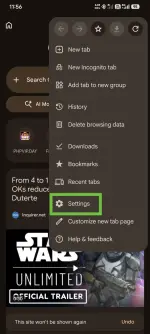
Open Google Chrome on your device. Located at the top-right corner of the screen, tap on the three-dot menu icon (highlighted in green).

Step 2:
A dropdown menu will appear. Tap on the Settings option (highlighted in green).
Step 3:
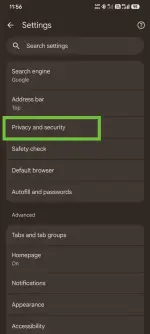
Scroll down in the Settings menu and tap on Privacy and security (highlighted in green.
Step 4:
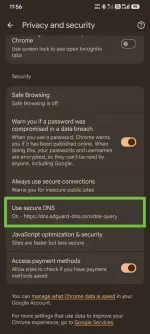
Under the Security section, tap on the option labeled Use secure DNS (highlighted in green).
Step 5:
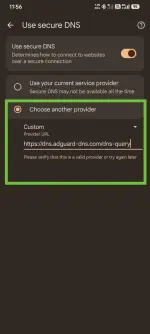
Enable "Use secure DNS" if it is not already on. Select Choose another provider, and from the dropdown menu, select Custom. In the "Provider URL" field, type the following exactly:
https://dns.adguard-dns.com/dns-query
You can now exit settings. Your Chrome browser is configured to use AdGuard DNS for cleaner and more private browsing.
Enjoy!

Uses of AdGuard DNS
AdGuard DNS is an alternative Domain Name System that helps you to:
Block Ads: Prevent many online advertisements and trackers from loading.Protect Privacy: Mask your DNS queries from your ISP, preventing them from logging your browsing activity.Block Malicious Sites: Offer a level of protection against phishing and malware domains.Step-by-Step Guide for ChromeStep 1:Open Google Chrome on your device. Located at the top-right corner of the screen, tap on the three-dot menu icon (highlighted in green).
Step 2:A dropdown menu will appear. Tap on the Settings option (highlighted in green).
Step 3:Scroll down in the Settings menu and tap on Privacy and security (highlighted in green.
Step 4:Under the Security section, tap on the option labeled Use secure DNS (highlighted in green).
Step 5:Enable "Use secure DNS" if it is not already on. Select Choose another provider, and from the dropdown menu, select Custom. In the "Provider URL" field, type the following exactly:
https://dns.adguard-dns.com/dns-query
You can now exit settings. Your Chrome browser is configured to use AdGuard DNS for cleaner and more private browsing.Enjoy!